How to Setup Bill.com Payments
How do I create a Bill.com account as a 1099 Contractor?
Well that answer is simple and starts with having your employer send you a link to get started.
If your an employer and need help check out our other guides here.
You will find that setting up your Bill.com account can be quick and easy. It is important to note that there a few steps that can feel cumbersome but these are for your safety, like any other bank account or payroll portal you want to be sure you are following Data Security best practices.
Now that’s out of the way lets get started.
Start by opening your email and find the message from the company asking you to set up your electronic payments. If will look similar to this one.
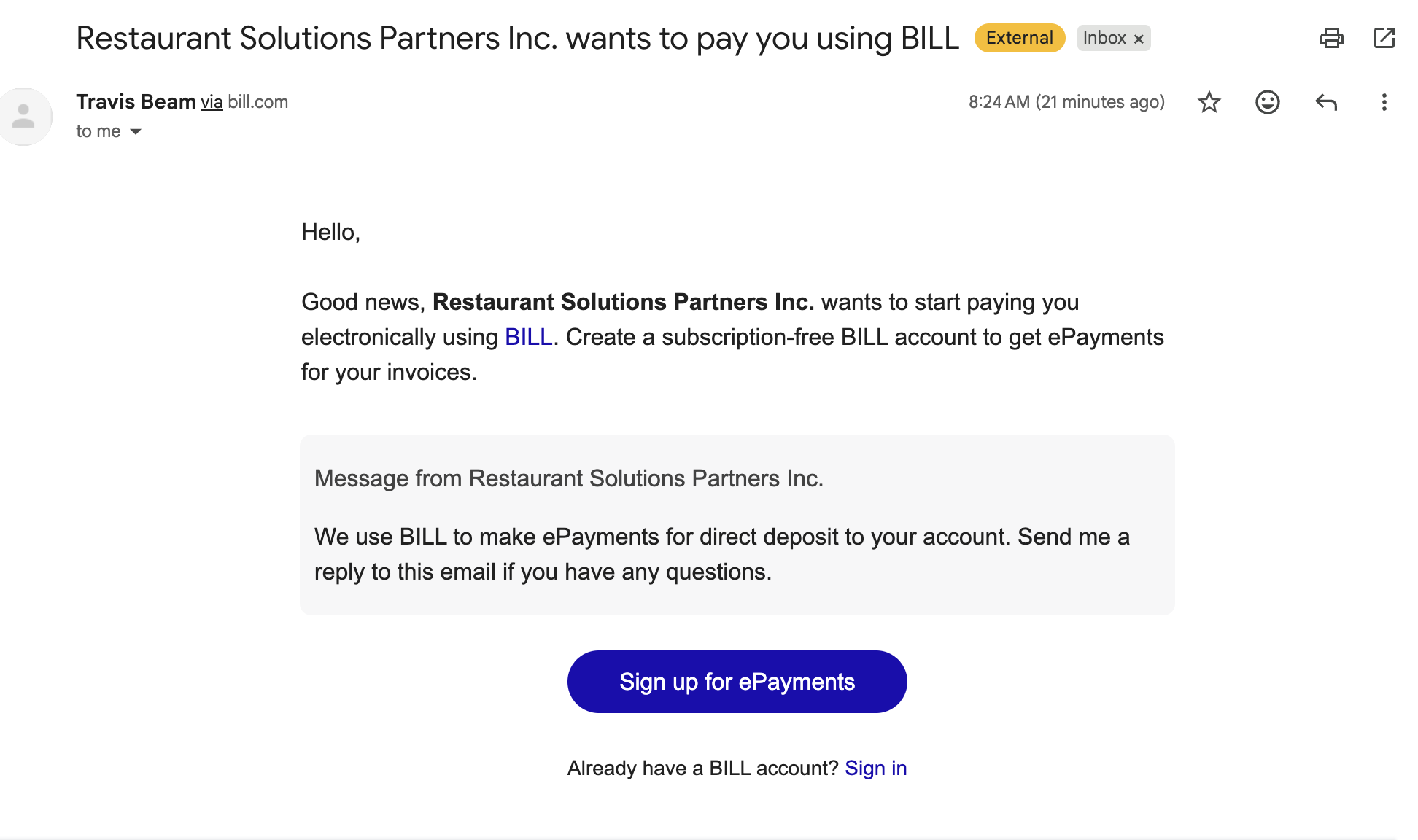
Once you click the link you will be taken to the create an account page; again its important to note that is should be treated just like a bank account, use a unique complex password.
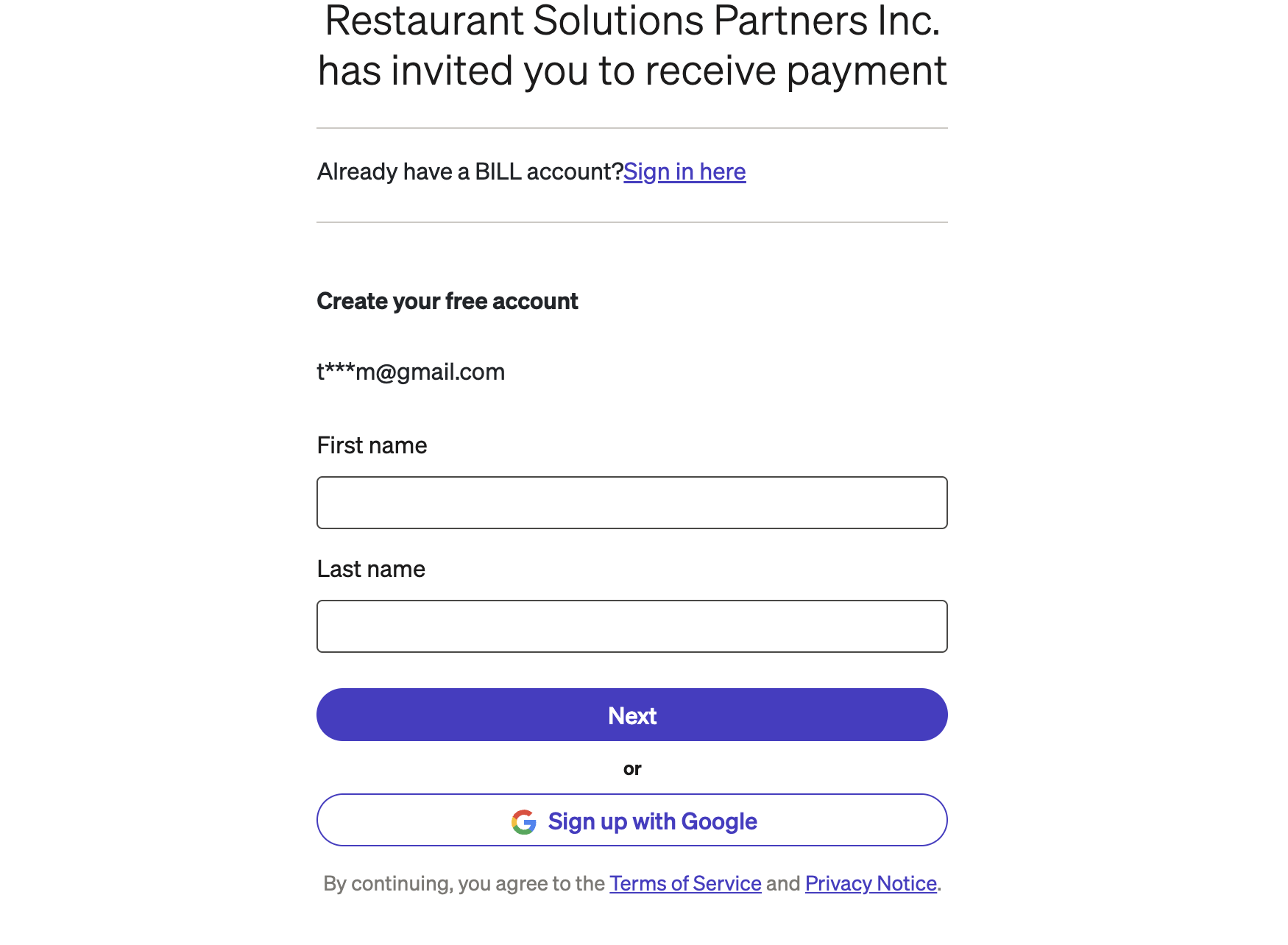
After your name; you will enter a complex password. 12 characters, then you will need to add a cell phone for two-factor authentication, then you will need to login again.
THIS IS FOR YOUR PROTECTION
Like ADP or Paycom you can and will manage your payment and personal information on this site.
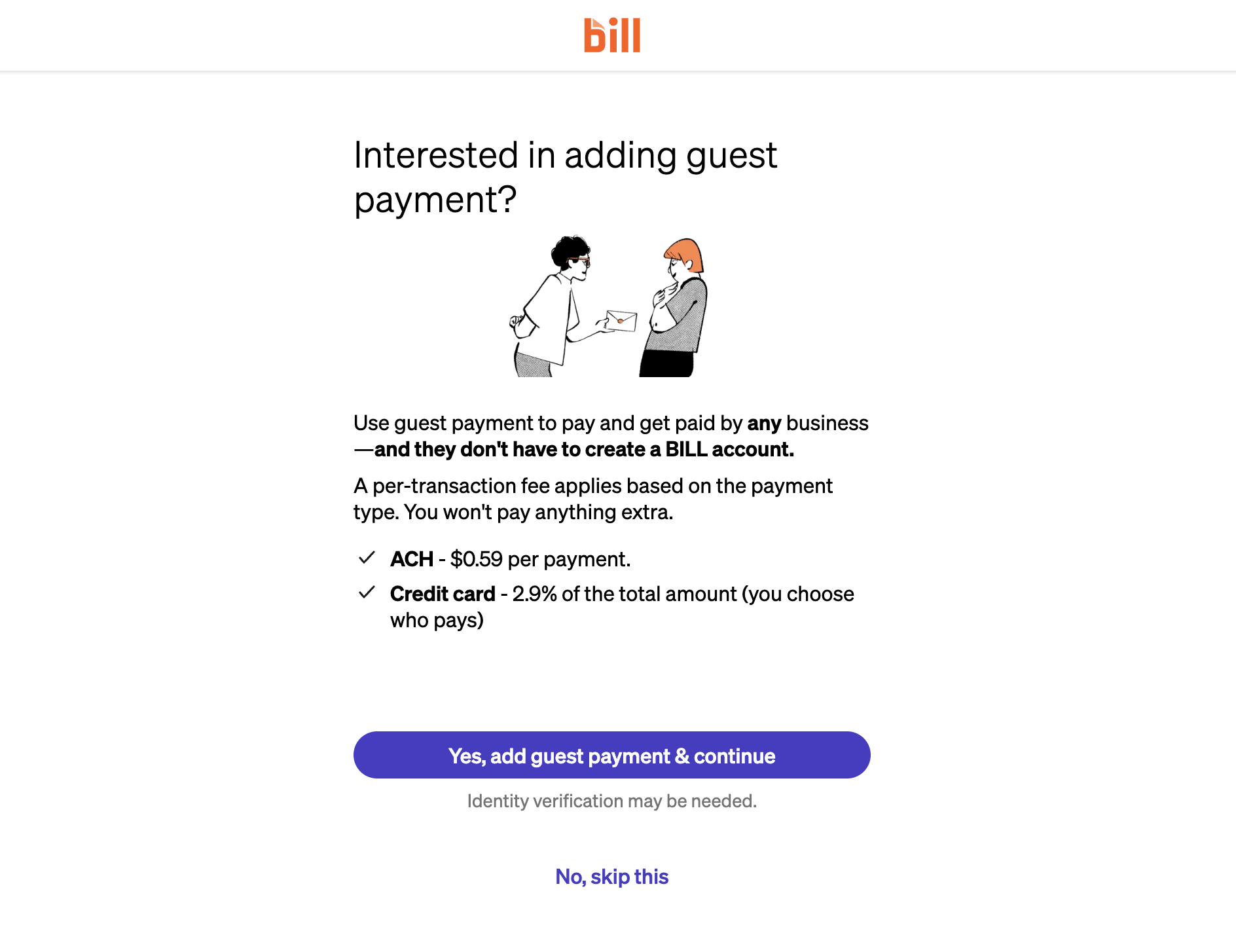
Once you have logged in again verifying your two factor authentication and your email you will see this screen and you will need to select
“Yes, add guest payment & continue”
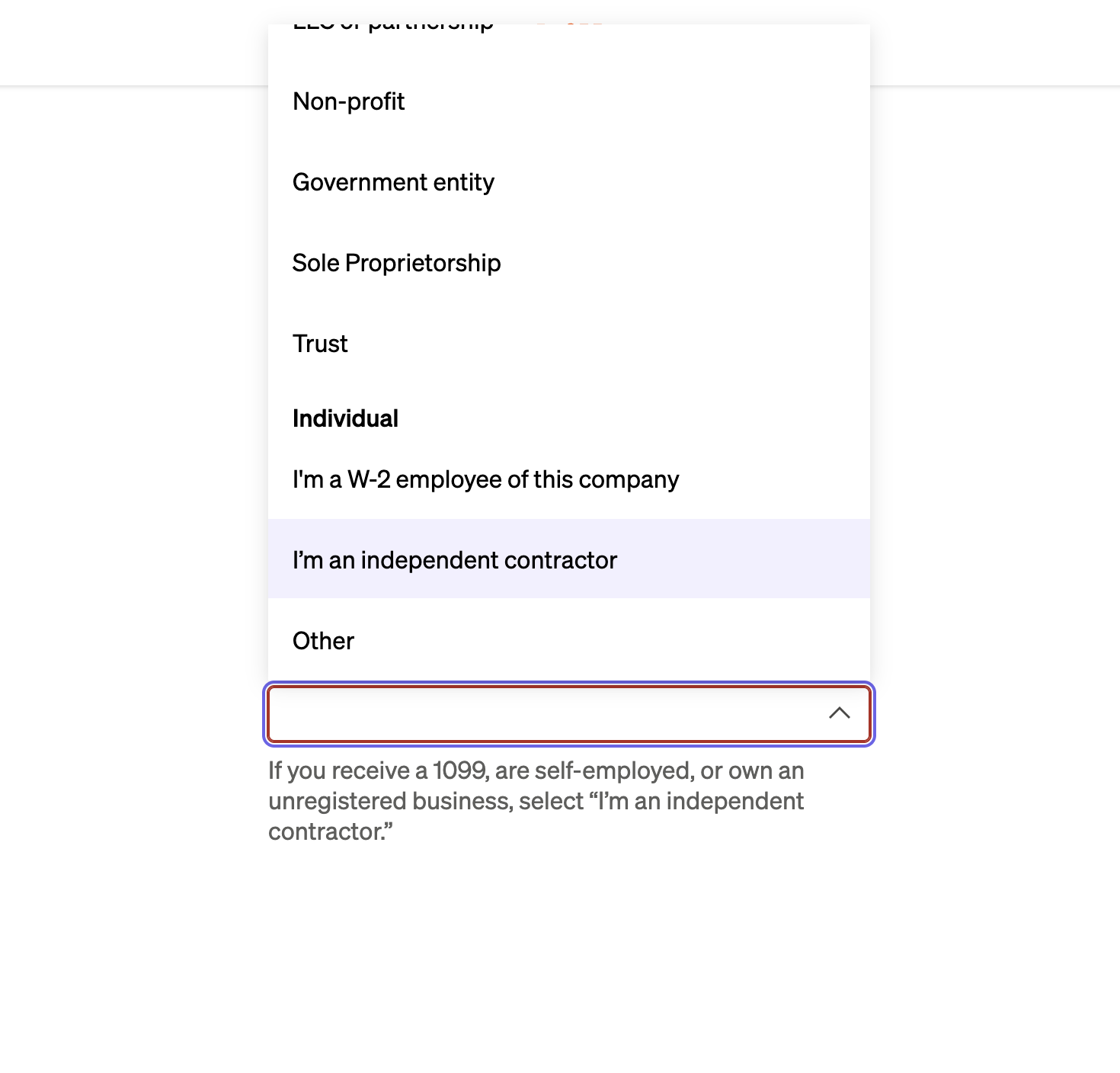
Now your off to the races and have to make some decisions about who your are or as Bill puts it your Business.
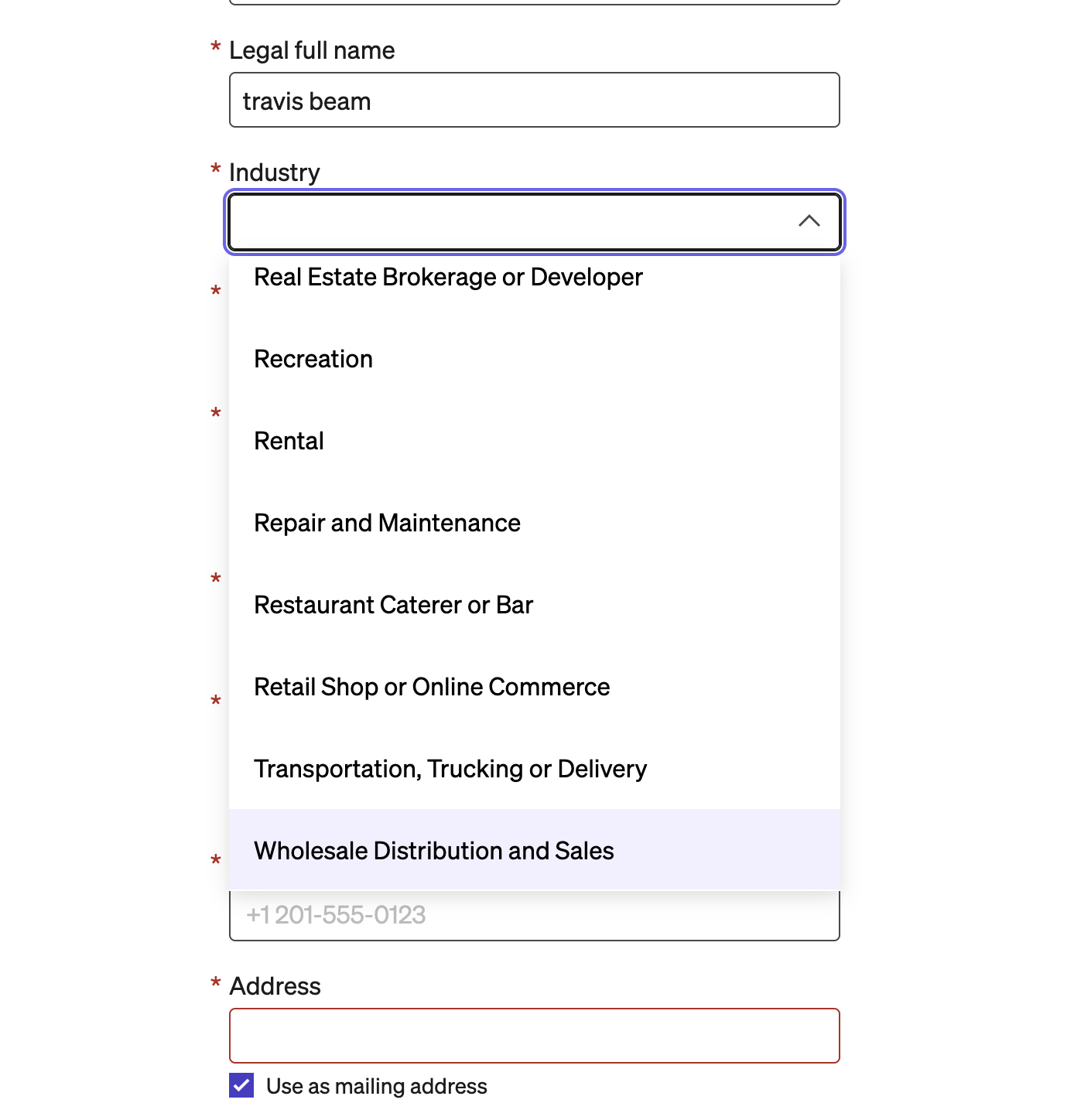
Select your Business Type – Typically this is “I’m an independent contractor”
Complete industry information and Legal entity information. For the purposes of this post we recommend Wholesale Distribution and Sales.
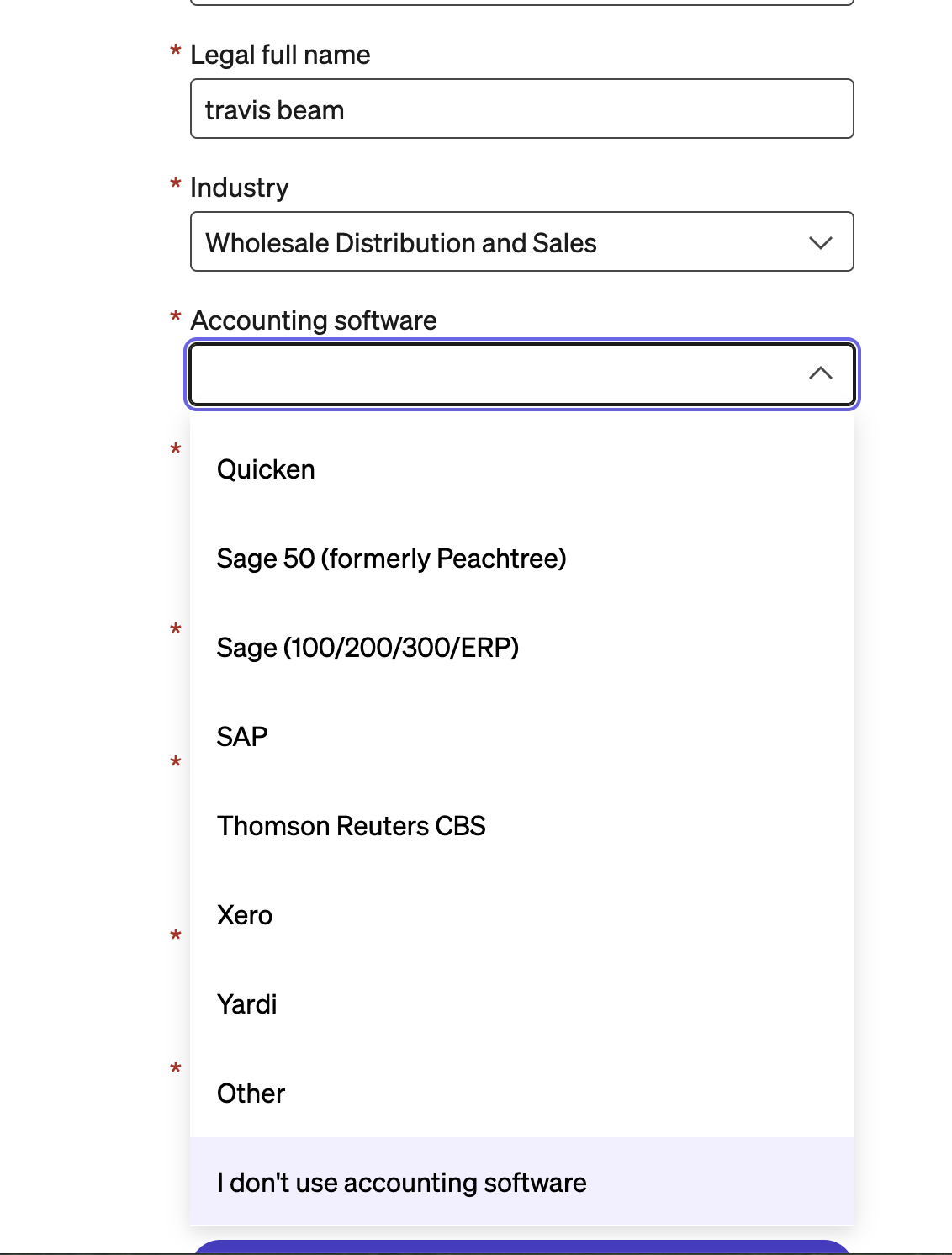
List your accounting tool if you have one. “I don’t use accounting software” is an option and if your following this guide likely the selection you will make.
Complete all required fields and click Next
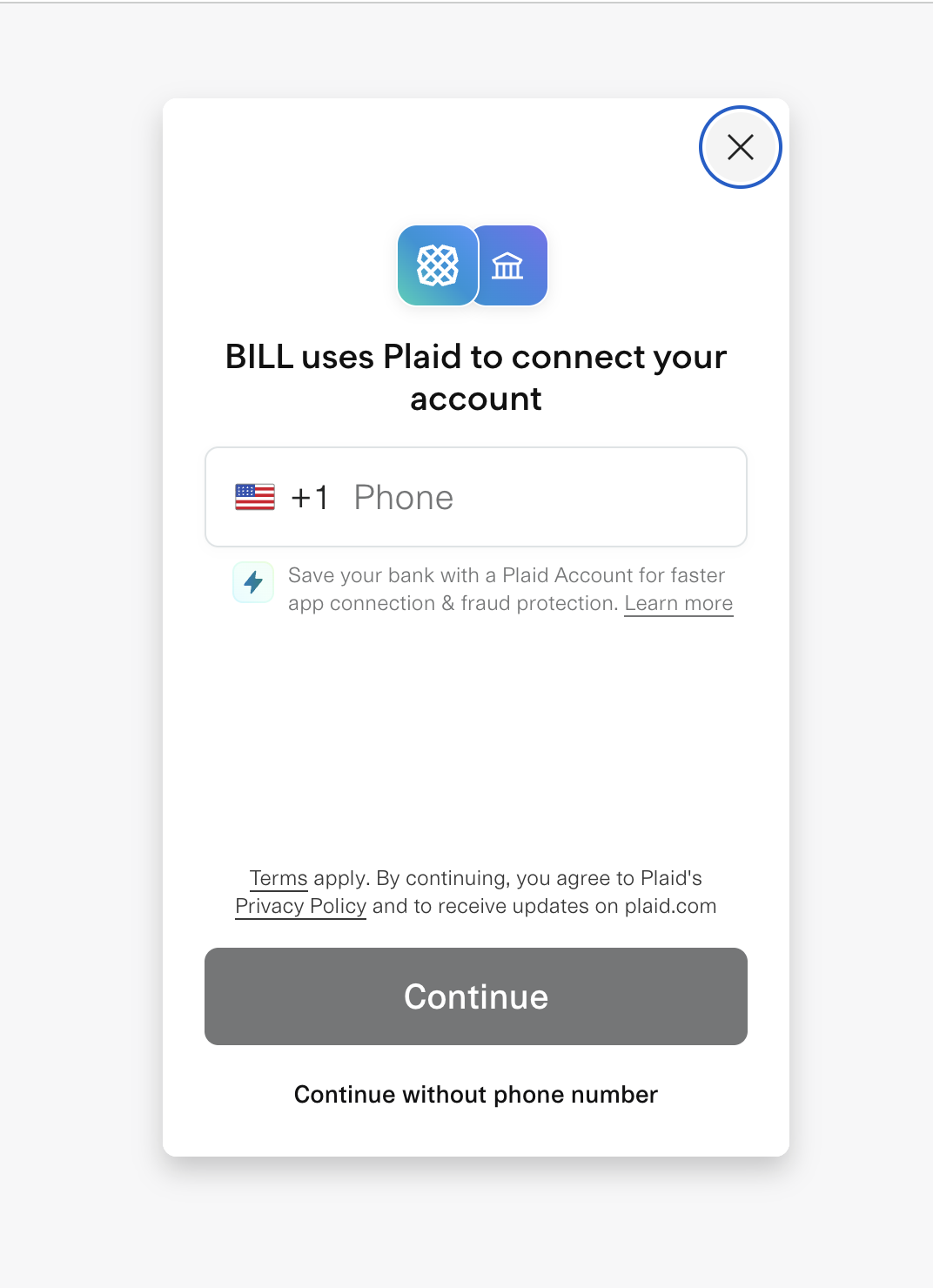
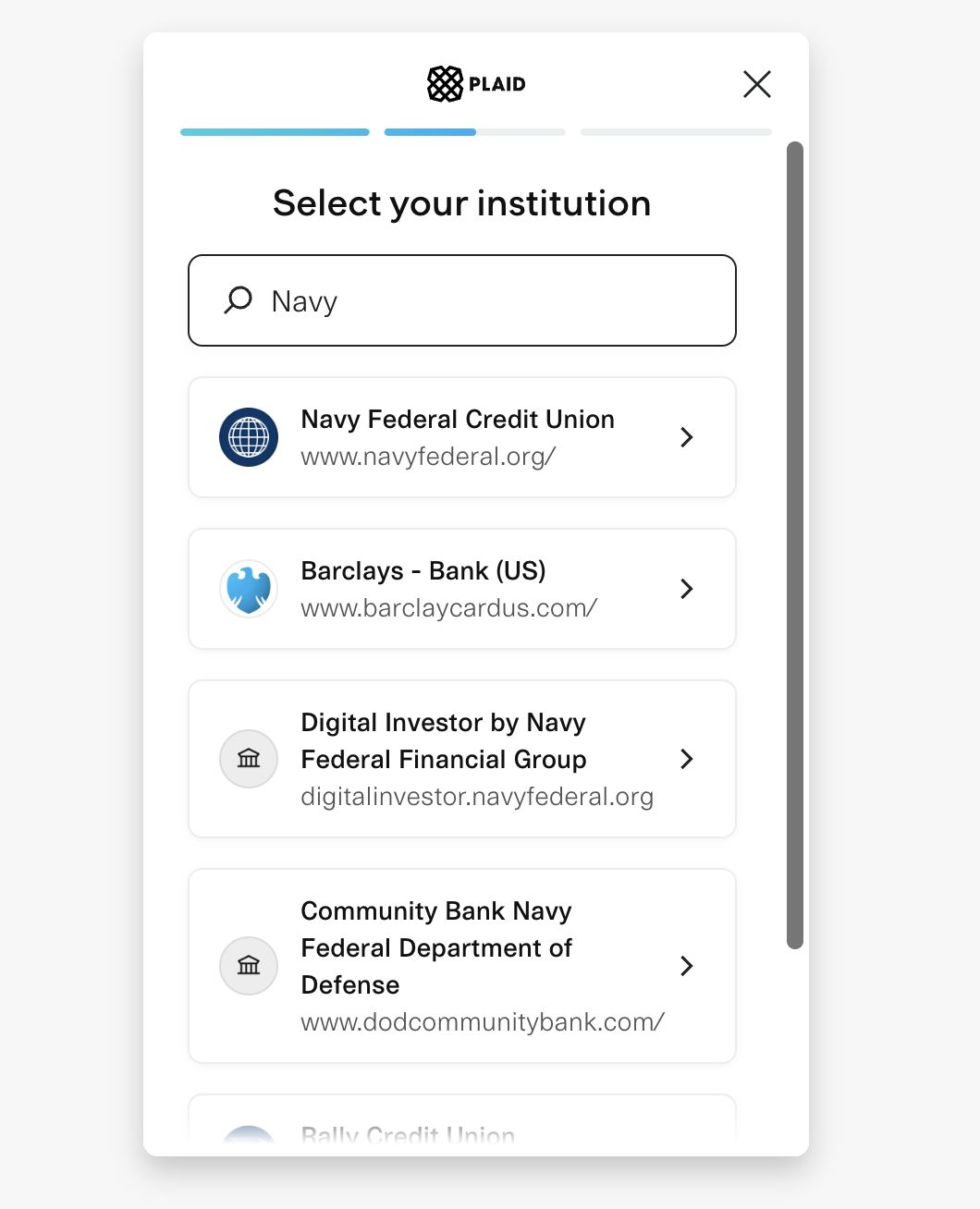
Adding your account information to receive a payment: Bill uses Plaid to connect to your bank, this is similar to PayPal or Link. Plaid ensures that your account information is accurate so you don’t have to manually type it in. IF you have more questions check out: How-it-works.
Get started by entering your phone number
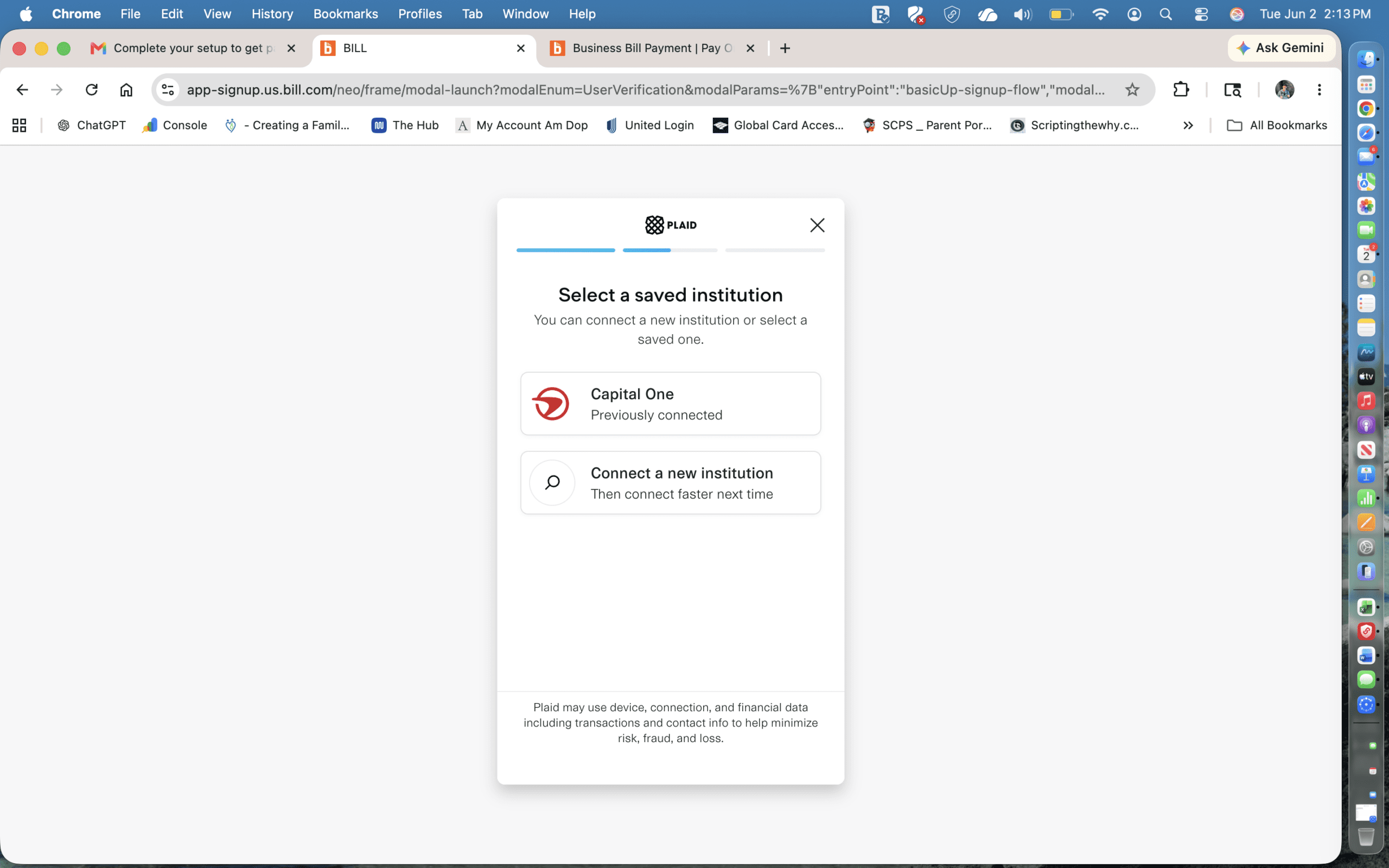
If you have connected an account before you will see it on the screen, below is how to connect a new one so you can see how.
If you don’t see your bank use the search and select the correct institution
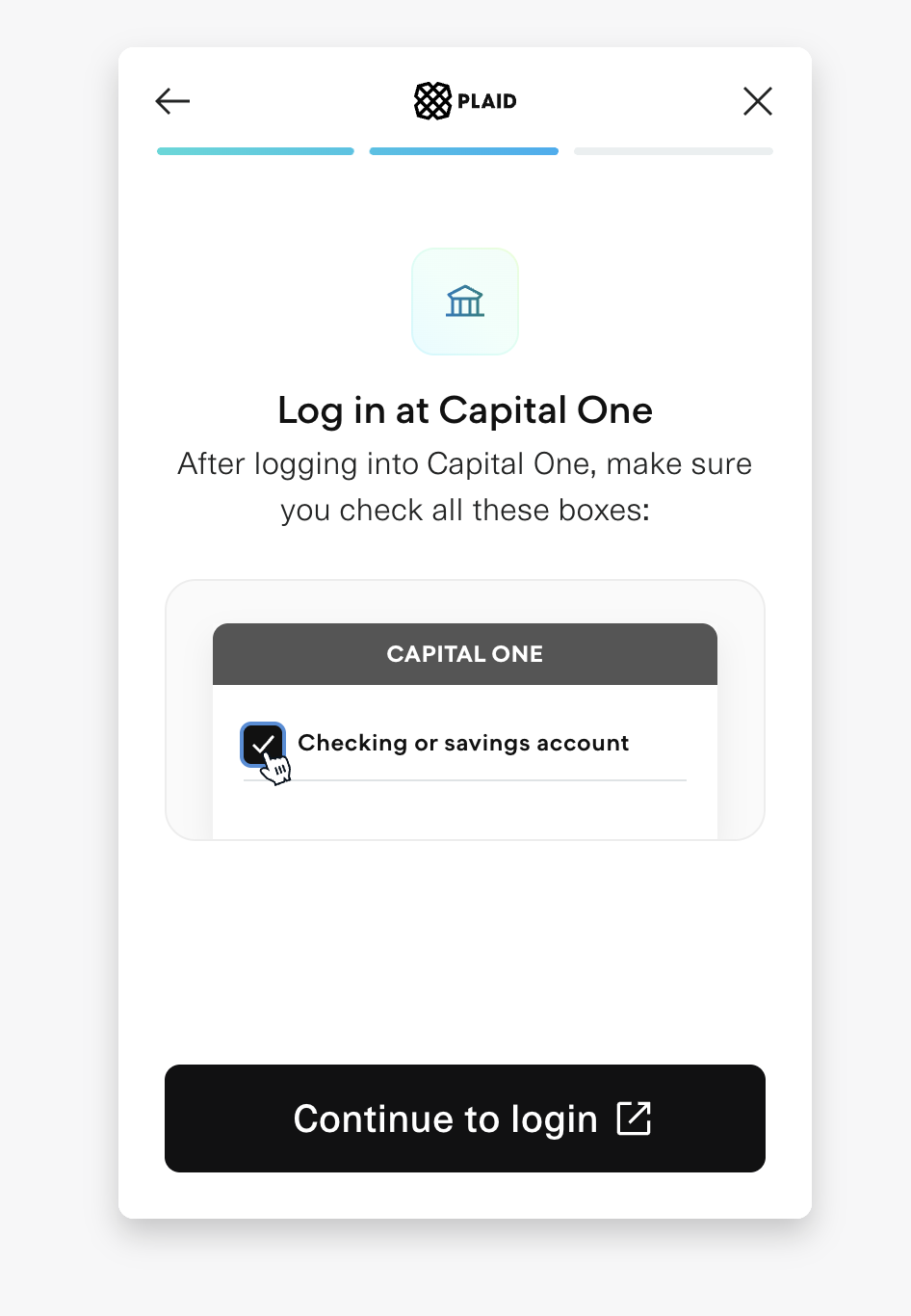
Once you select the bank you will be asked to login via the online banking
Once you login in, your will get to see the information that is shared with Bill.com.
Then select which account you would like to connect to receive your payments.


Don’t forget to Authorize!
Now your back at Bill.com but your aren’t finished yet. Bill still needs to be sure this is the correct account so add the account holders name, remember Safety.
Once thats done all you need to do is select how you’d like to receive your payments and click, save payment speed.


You are now set up for payments in Bill.com, In some cases Bill will send you a $0.01 deposit, this is to confirm the account information. Be sure to keep an eye on your email and confirm when you have received this payment.
As you can see establishing this account just takes a few minutes and will make submitting payments easier, payments faster and helps eliminate errors by allowing you to electronically link your Bill.com account to the bank account of your choice.
Don’t forget as a 1099 contractor you will need to complete a W-9, if you have questions learn more by reading this guide.
